


The trader2B MT5 Bridge is two pieces. trader2B Connector is a small Windows program that carries traffic between MetaTrader 5 and your trader2B account. trader2B.ex5 is the panel that runs inside MetaTrader 5 and gives you the order ticket. You need both — the panel does not trade unless the connector is running.
Setting it up takes about ten minutes, and you only do it once. After this, the panel reconnects by itself every time you open MetaTrader 5.
Before you start
- MetaTrader 5 on Windows 10/11
- A trader2B account
- A trader2B MT5 Connector API key
- An internet connection
Your MT5 Connector key is not the same thing as an Automated Trading API key. The two are issued separately, and the connector only accepts a key created for the MT5 Connector add-on. A key issued for the REST and WebSocket API will be refused.
Downloads
- trader2B Connector (.exe) — Windows 10/11, nothing to install
- trader2B panel (.ex5) — the Expert Advisor that runs inside MetaTrader 5
- Get your MT5 Connector API key — WebTrader, under Add-Ons
Part 1 — Install
1. Download both files
Download trader2B Connector.exe and trader2B.ex5 using the links above. Keep them somewhere you can find again — your Downloads folder is fine.
2. Open the MetaTrader data folder
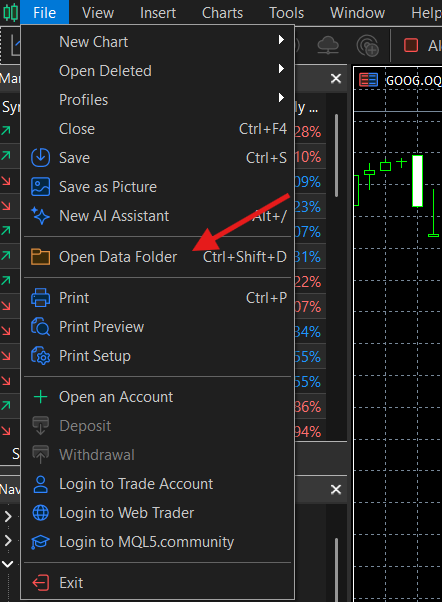
In MetaTrader 5, go to File → Open Data Folder. A Windows folder opens. This is where MetaTrader keeps your programs.
3. Copy the panel into MQL5 → Experts
Inside that folder, open MQL5, then Experts, and copy trader2B.ex5 into it. Restart MetaTrader 5 so it picks up the file.
4. Open the Expert Advisors options
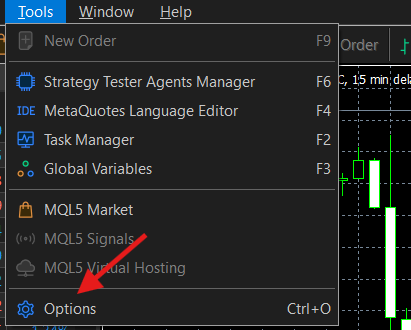
Back in MetaTrader 5, go to Tools → Options and choose the Expert Advisors tab.
5. Allow the local connection
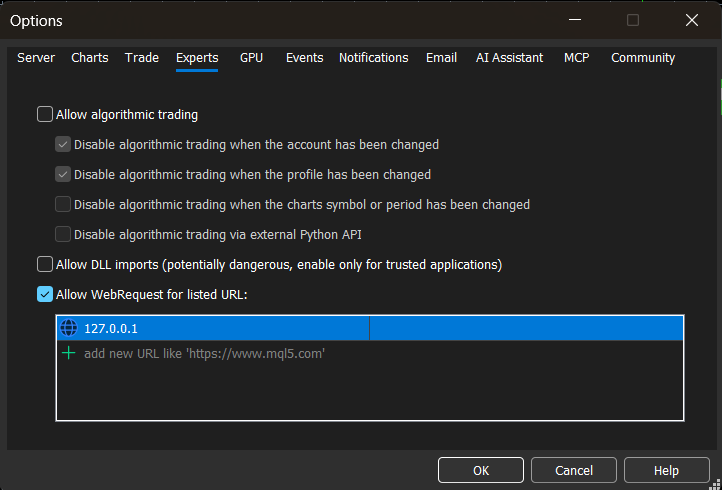
Tick Allow WebRequest for listed URL and add 127.0.0.1 — that one entry, not a web address. Press OK.
This is the step most set-ups miss. Without it, MetaTrader blocks the panel from reaching the connector and nothing happens when you place an order.
Part 2 — Connect
6. Start the connector and enter your API key
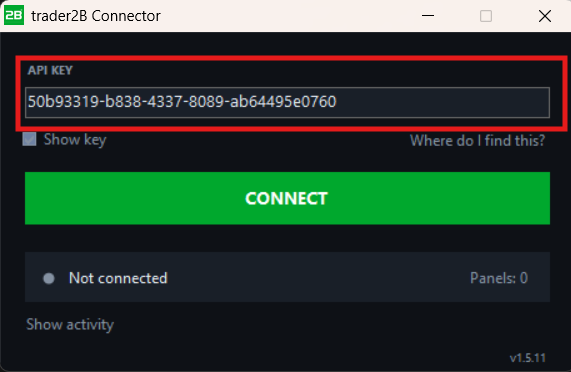
Run trader2B Connector.exe. There is nothing to install. Paste your trader2B API key and press CONNECT. The connector remembers the key, so this is a one-time step.
7. Check that it connected
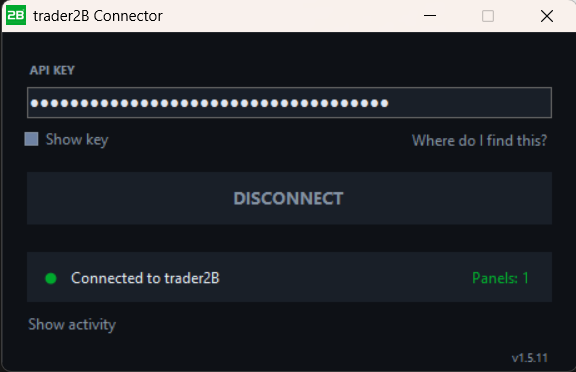
The status line reads Connected to trader2B. Leave the window open or minimise it to the tray — closing it stops live updates and the panel will no longer be able to send orders.
Part 3 — Attach the panel
8. Drag the panel onto a chart
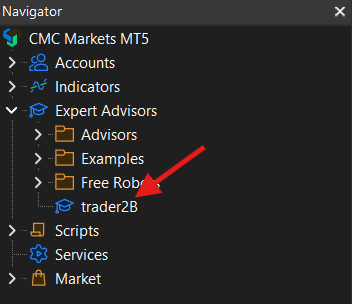
In the MetaTrader 5 Navigator, open Expert Advisors and drag trader2B onto any open chart.
9. Allow algo trading
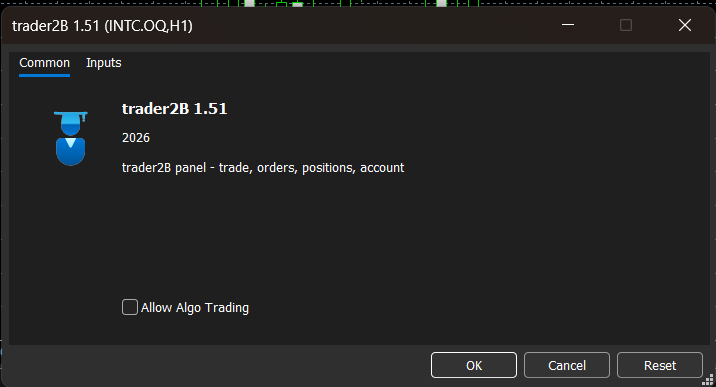
On the Common tab, tick Allow Algo Trading and press OK. Make sure the Algo Trading button in the MetaTrader toolbar is switched on as well — if it is off, MetaTrader will not run the panel.
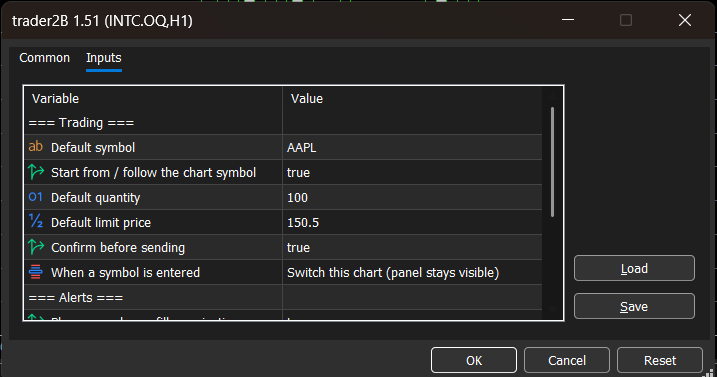
10. Set your defaults (optional)
The Inputs tab sets the symbol, the quantity and whether the panel asks you to confirm before sending. Every one of these can be changed later from the panel itself, so skip this step if you would rather.
Using the panel
The panel sits on your chart. Everything below is one click away.
Place an order
Market, limit and stop orders, long or short, from the Trade tab.
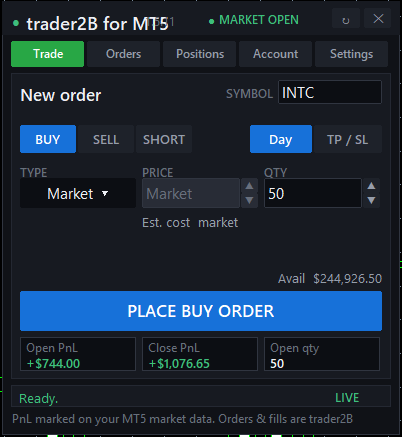
Take profit and stop loss
Set both as a distance from your fill, in dollars per share — not as price levels. Entering 0.50 as a stop loss on a fill at 100.00 places the stop at 99.50 on a long.
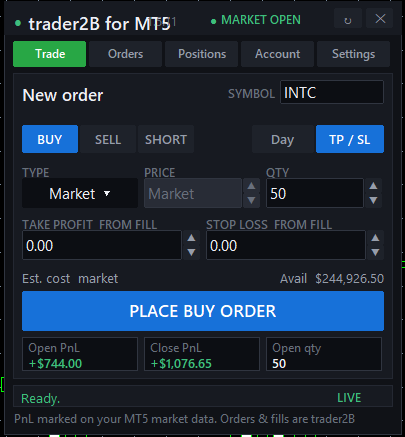
Choose the order type
Market, Limit or Stop.
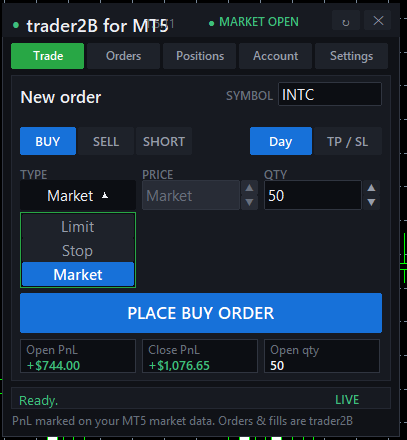
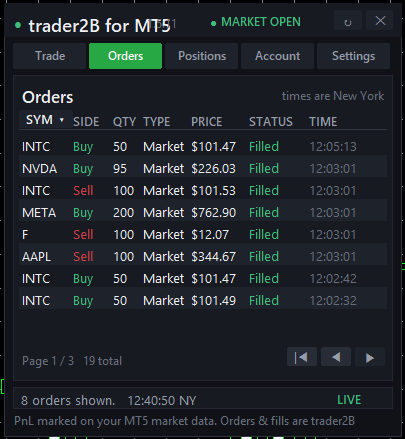
Watch your orders
Every order for the day, with its live status.
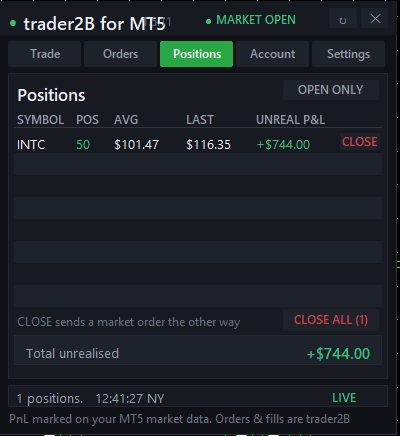
Track open positions
Size, average price and unrealised P&L, with a close button on every row.
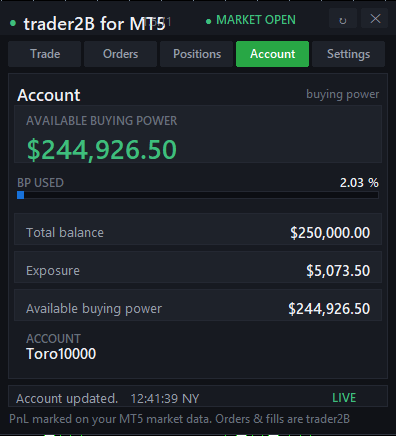
See your account
Buying power, exposure and balance, updated as you trade.
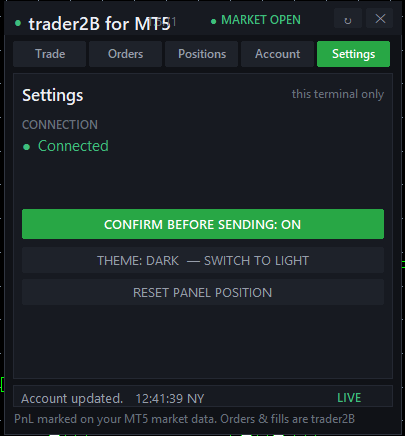
Settings
Connection status, order confirmation and theme.
If something is not working
The panel loads but nothing happens when I place an order
Almost always step 5. Go back to Tools → Options → Expert Advisors and check that Allow WebRequest for listed URL is ticked and that 127.0.0.1 is in the list.
The panel does not appear on the chart
Check that the Algo Trading button in the MetaTrader toolbar is on, and that Allow Algo Trading was ticked when you attached the panel. If the file is not in the Navigator at all, it is not in MQL5 → Experts, or MetaTrader has not been restarted since you copied it there.
The connector will not accept my API key
Check that the key was issued for the MT5 Connector add-on, in WebTrader under Add-Ons. A key created for the Automated Trading API will not connect. If your key came from a free trial, check that the trial has not expired.
Everything was working and then stopped
Check that the connector window is still running. Closing it ends the session; minimising it to the tray does not.
Things worth knowing
- MetaTrader shows its own market data. The prices, positions and P&L MetaTrader displays are calculated from your MetaTrader broker’s feed. Your official balance, positions and P&L are the ones trader2B holds — check those in WebTrader when the two disagree.
- Your account rules do not change. Buying power, share limits, risk rules and trading hours are the same whether you trade from WebTrader, the desktop platform or MetaTrader 5.
- Expert Advisors work. Orders an EA places go through the panel like any other. Automated trading remains subject to your trader2B account rules.
- The connector runs on your machine. Your API key is stored locally and is not shared with your MetaTrader broker.
Still stuck? Contact support with the symbol you were trading and what the connector’s status line said, and we will pick it up from there.